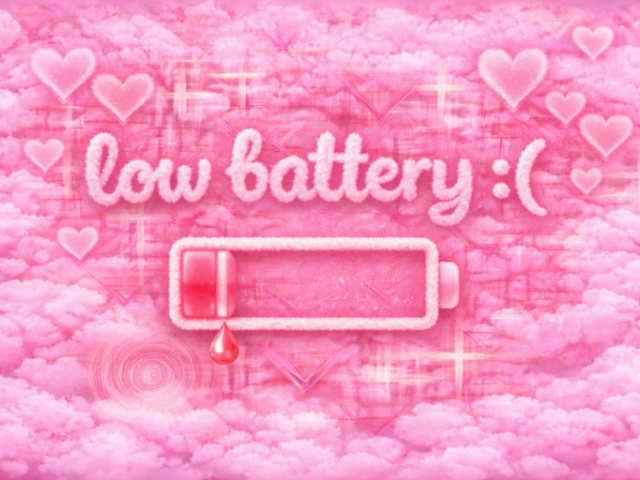
PINK / BLUE
Pink & blue welcome
640 × 480 · 24-bit BMP · 900 KB

Rename before installing. Use the exact filename of the image you’re replacing, not this download’s descriptive name.
A LITTLE TOOL BY 589 SOFTWARE
Make your handheld feel like yours. Turn an image into a properly sized BMP, pick a screen design, and give your R36S a fresh welcome.
01 / MAKE IT YOURS
Your image stays in your browser.
Or drop it here. PNG, JPEG, WebP or BMP.
Up to 25 MB and 40 megapixels.No image selected
640 × 480 is a common R36S boot-logo size. Match the image you’re replacing if it differs.
BMP: logo.bmp, 24-bit, uncompressed.
JPEG: loading.jpg, for screens that require it.
Choose an image to begin.
Your image will appear here.
640 × 480 / MADE FOR YOUR HANDHELD640 × 480 px · 24-bit BMP · 921,654 bytes
Check the preview before downloading. “Fill” crops the edges; “Keep the whole image” adds borders in your chosen background color.
The filename matters. Before copying any download to your SD card, rename it to the exact name of the file you’re replacing, including capitalization and extension. logo.bmp is a common example, not the name for every screen. Renaming a BMP to .jpg does not convert it—use the JPEG download when needed.
02 / PICK YOUR PALETTE
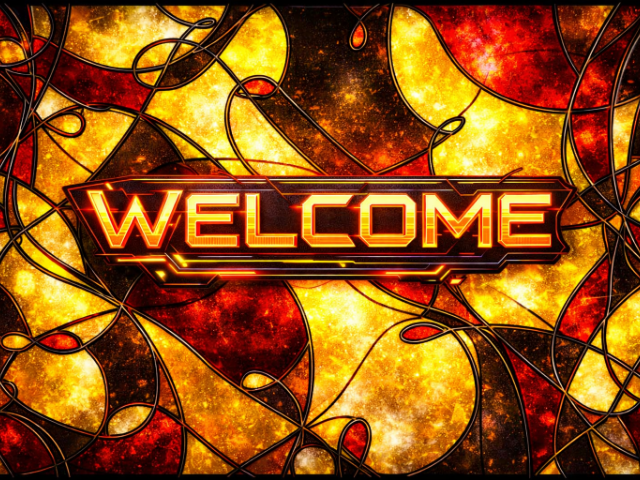
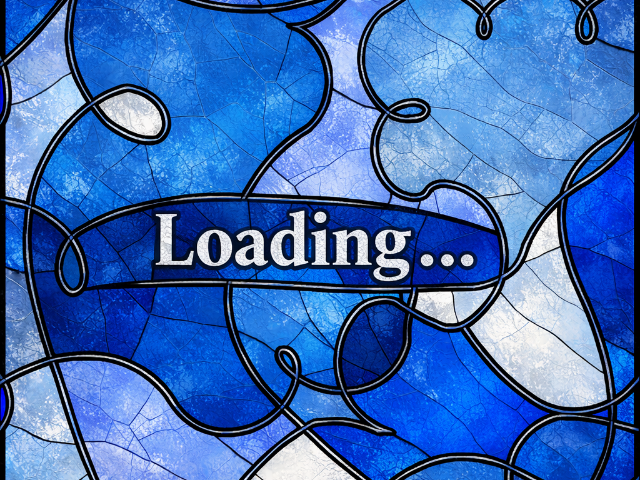
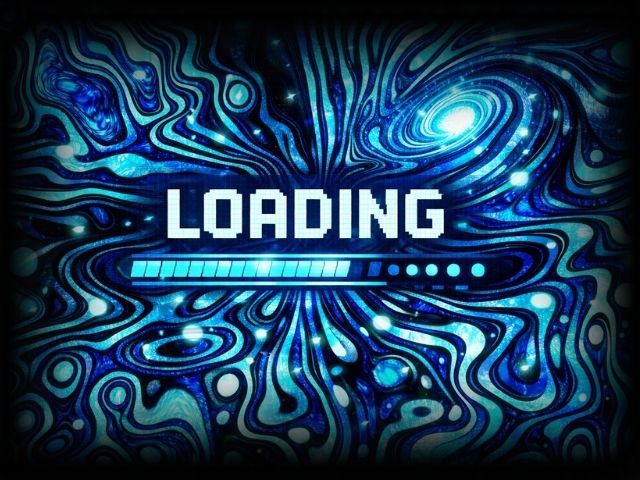
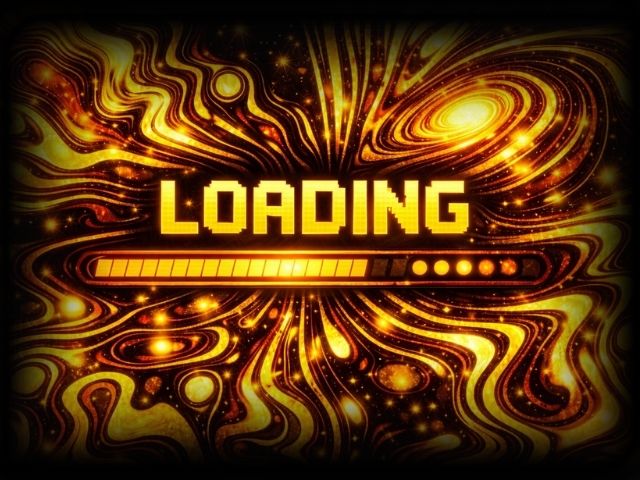
Free screen designs from 589 Designs, now at home on 589 Software. All designs are 640 × 480. Download the original BMP or JPEG, or open it in the converter to resize it and change formats. Match the format required by the screen you’re replacing.
PINK / BLUE
640 × 480 · 24-bit BMP · 900 KB
Rename before installing. Use the exact filename of the image you’re replacing, not this download’s descriptive name.
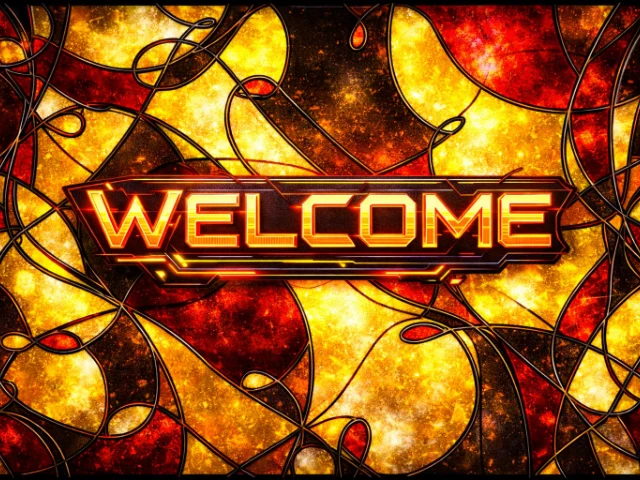
RED / GOLD
640 × 480 · 24-bit BMP · 900 KB
Rename before installing. Use the exact filename of the image you’re replacing, not this download’s descriptive name.
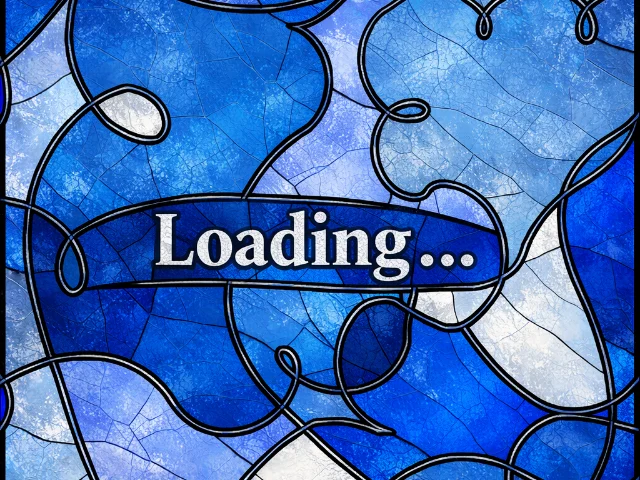
BLUE / SILVER
640 × 480 · 24-bit BMP · 900 KB
Rename before installing. Use the exact filename of the image you’re replacing, not this download’s descriptive name.
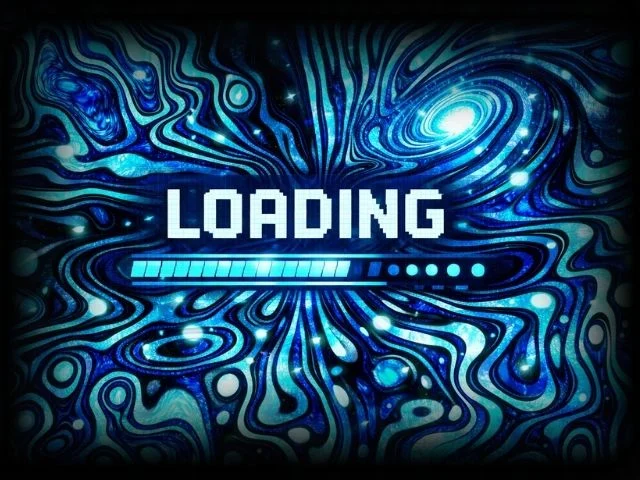
BLUE / CYAN
640 × 480 · JPEG · 81 KB
Rename before installing. Use the exact filename of the image you’re replacing, not this download’s descriptive name.
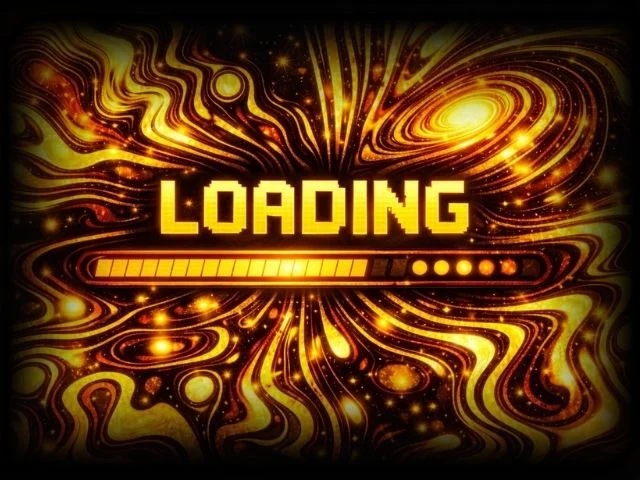
YELLOW / GOLD
640 × 480 · JPEG · 76 KB
Rename before installing. Use the exact filename of the image you’re replacing, not this download’s descriptive name.
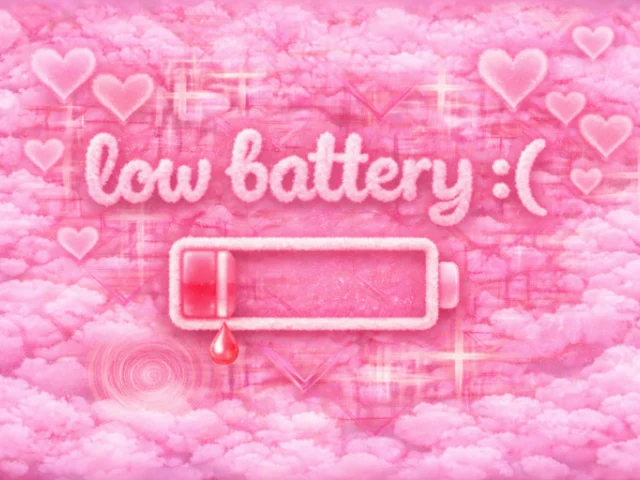
PINK
640 × 480 · 24-bit BMP · 900 KB
Rename before installing. Use the exact filename of the image you’re replacing, not this download’s descriptive name.
These are image files, not firmware or themes. The low-battery design only changes the artwork on a compatible screen; it does not add a battery warning feature.
03 / FROM BROWSER TO HANDHELD
You’ll need your handheld, its microSD card, a computer and a microSD card reader (or SD adapter).
R36S devices ship with different firmware and card layouts. Treat folder names as starting points, then check the actual files on your card.
Back to the converterWatch the device start and launch a game or app. Remember the artwork—or take a photo. The first boot logo, later startup screens, game-loading screen and low-battery image can be separate files.
Use the device’s shutdown menu and wait until it is fully off. Remove the operating-system microSD card, usually in the slot labeled TF1 / OS, and put it in your computer’s card reader. In a two-card setup, the second card may hold the games and some loading images.
If your computer asks to format or initialize an unreadable partition, cancel. A Linux partition may not be readable by Windows or macOS; that does not mean it is empty or broken.
Start with the locations below. Copy the original to a backup folder on your computer before replacing anything, and note its full path, exact name, dimensions and file type.
On many ArkOS setups, look for logo.bmp at the top level of the BOOT partition. It commonly uses 640 × 480 pixels and 24-bit BMP.
Look for launchimages on the ROMs partition, often labeled EASYROMS. ArkOS can use loading.jpg in /roms/launchimages/ or /roms2/launchimages/. That file needs a JPEG export.
These are ArkOS examples: boot-logo documentation and loading-screen documentation. Other firmware may use different locations or formats.
Search each readable partition on the entire SD card for .bmp files, then preview the results. On Windows, open the card in File Explorer and search for *.bmp. On macOS, open the card in Finder, search for .bmp and choose the card as the search scope instead of “This Mac.”
Look for the image you recognize from the device. If you can’t find it, also check .jpg and .png, including folders named boot, BMPs, logos or launchimages if present. A folder name is a clue, not proof: confirm the artwork and its use before replacing it.
A computer search only covers mounted, readable partitions. If the original is elsewhere, use your firmware’s file manager or documented file-transfer method to find it.
Use the converter to match the original’s dimensions and format. For a BMP boot logo, the default export is 24-bit and uncompressed. If the original is a JPEG, use Download JPEG. If it needs a PNG, keep that format in an image editor.
Rename your download to exactly the original filename, including uppercase/lowercase letters and the extension. For example, replace logo.bmp with a new logo.bmp, not RedYellowWelcome.bmp or logo.bmp.bmp. Show file extensions in your file manager so you can check. Then copy it into the same folder and replace only that image.
Safely eject the card’s mounted volumes, return the card to its original slot, and turn on the R36S. Test the same startup or game-launch step you noted earlier. If the result is wrong, shut down again and restore the backed-up original.
If the picture later changes back, your firmware may cycle boot logos from another folder or regenerate the file. Check its documentation and the images it actually uses before changing more files.
A FEW USEFUL DETAILS
An extension does not change the file’s encoding. This converter writes a real 24-bit uncompressed BMP, including the bitmap headers and row padding. Transparent parts are filled with your selected background color.
They appear at different stages: firmware draws the initial boot image, while the game frontend can draw a separate loading image. Change the file that matches the screen you want, and keep its required format and filename.
Yes. Choose an image or drag it into the converter. Resizing and export happen locally in your browser; the converter does not upload or store your image. Animated images are exported as a single still frame.